Hugo + PaperMod + Github Pages 搭建一个完善的个人博客(以 Windows11 为例)
前言
之前四五年的时间里也算写过五六百篇博客。以前的 Hexo 顶不住博客数量的压力了,所以,切到 Hugo 试一下。
涉及工具
除了搭建博客和介绍如何使用这个博客框架这样一个流程本身,还包含了对 PaperMod 这个主题的一些细节的定制。
本文涉及到的工具或者网站:
为什么
这里主要解释一下为什么要选择这样一个组合。
- 选择 hugo 纯粹是因为快。
- 选择 PaperMod 这个主题是因为它的 star 数量挺高的,不过,比起 hexo 的主题生态还是差得太远了,文档也相当简陋。不过,没办法,这已经算是最好的一档了。
- 博客选择托管在 github pages 上面是因为稳定,而且没有限制,基本上没有内容审查。我之前也使用 hexo 配合 github 搭建过静态博客,之前写过大概几百篇博客,从来没有遇到过内容审查,当然,也从来没有想过写一些很敏感的东西。
- 图床选择的是 postiamge,这个是免费的,类似的还有 imgur,但是 imgur 的图片加载速度在一些地方实在是堪忧甚至经常加载不出来,只好换上另一个有很多年头的网站了,正因为年纪大,所以给人的感觉是稳定。
- 评论使用 giscus 是因为快,因为也是使用 github 的服务,利用的是 github discussion,所以,比 discus 之类的小厂要快。稳定性倒是差不多。以及,github 的用户是比较多的,所以会更方便大家评论交流,这一点很重要。
- neovim/vscode 是用来编辑配置用的,编辑工具/IDE这一点见仁见智。
- git 不用多说了。
- flaticon 是用来挑选网站的 favicon 的。
总结一下,就是几个词儿:免费、快、稳。
安装
首先,安装 hugo,在 Windows 中,推荐使用 scoop 来安装预编译的二进制版本,
scoop install hugo-extended
安装完之后,执行命令看一下版本信息,
hugo version
看到类似下面的输出,就说明安装成功了,

使用
创建博客
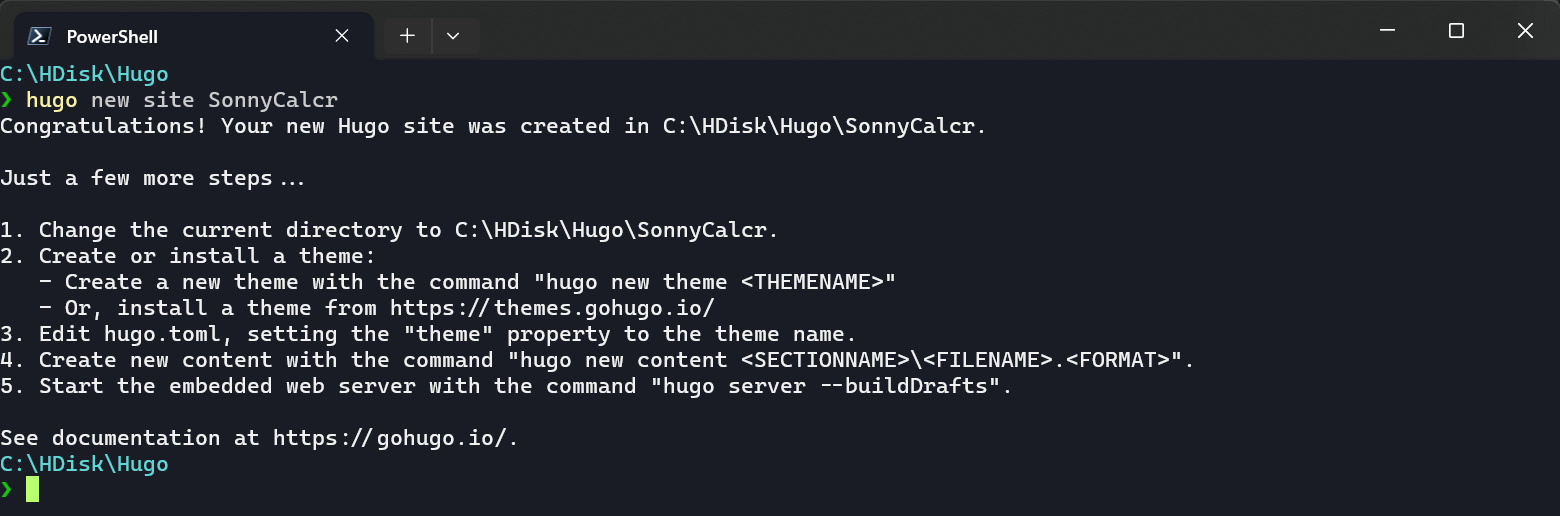
然后,我们就使用 hugo 在本地创建一个站点,也就是一个博客,
按:这里可以参考 hugo 官网的指导。
hugo new site SonnyCalcr

然后,
cd SonnyCalcr
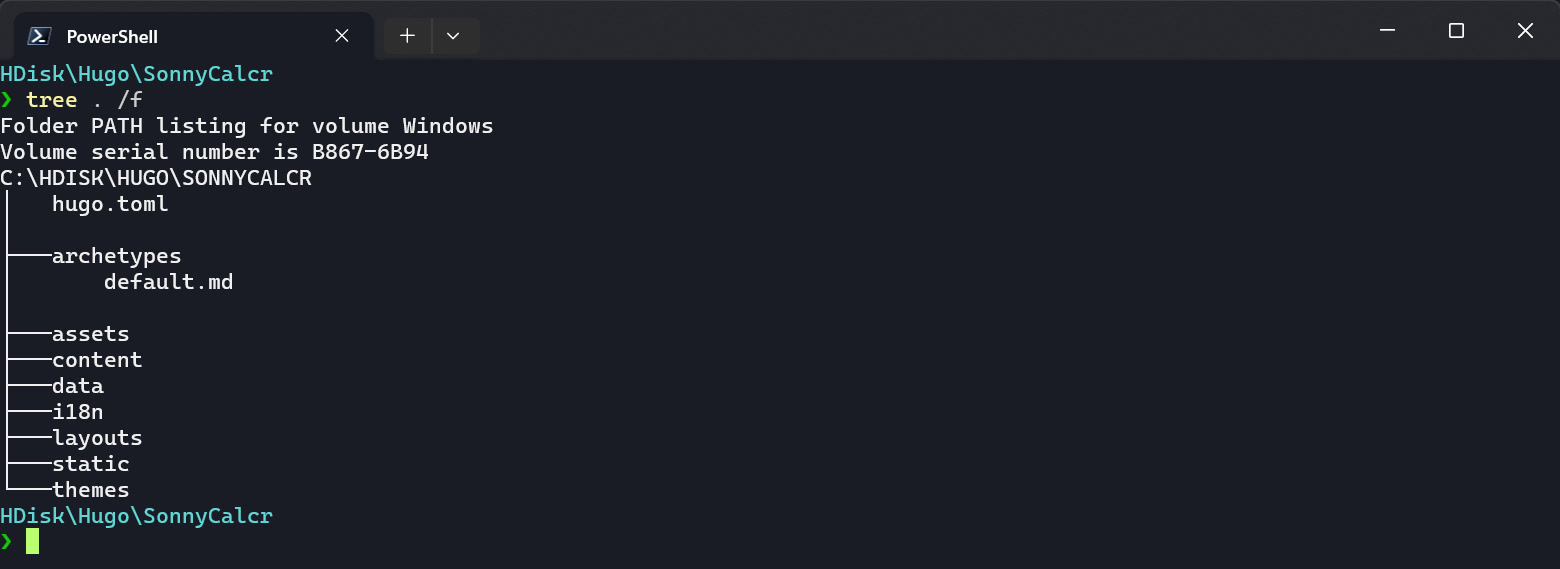
tree . /f
可以看到默认创建的一些文件和目录,
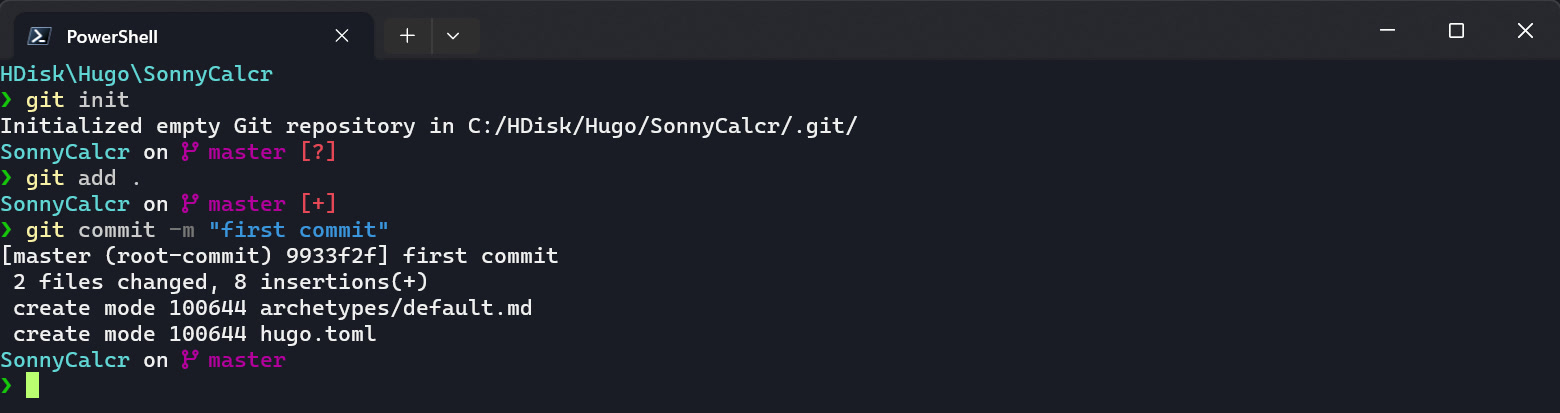
然后,我们先将此目录初始化成 git 仓库,
git init
git add .
git commit -m "first commit"
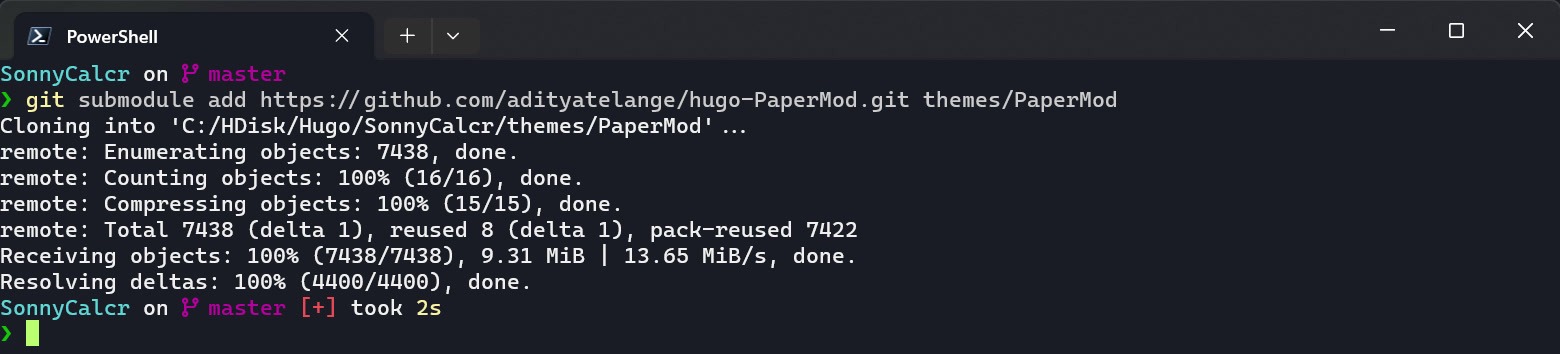
添加 PaperMod 主题
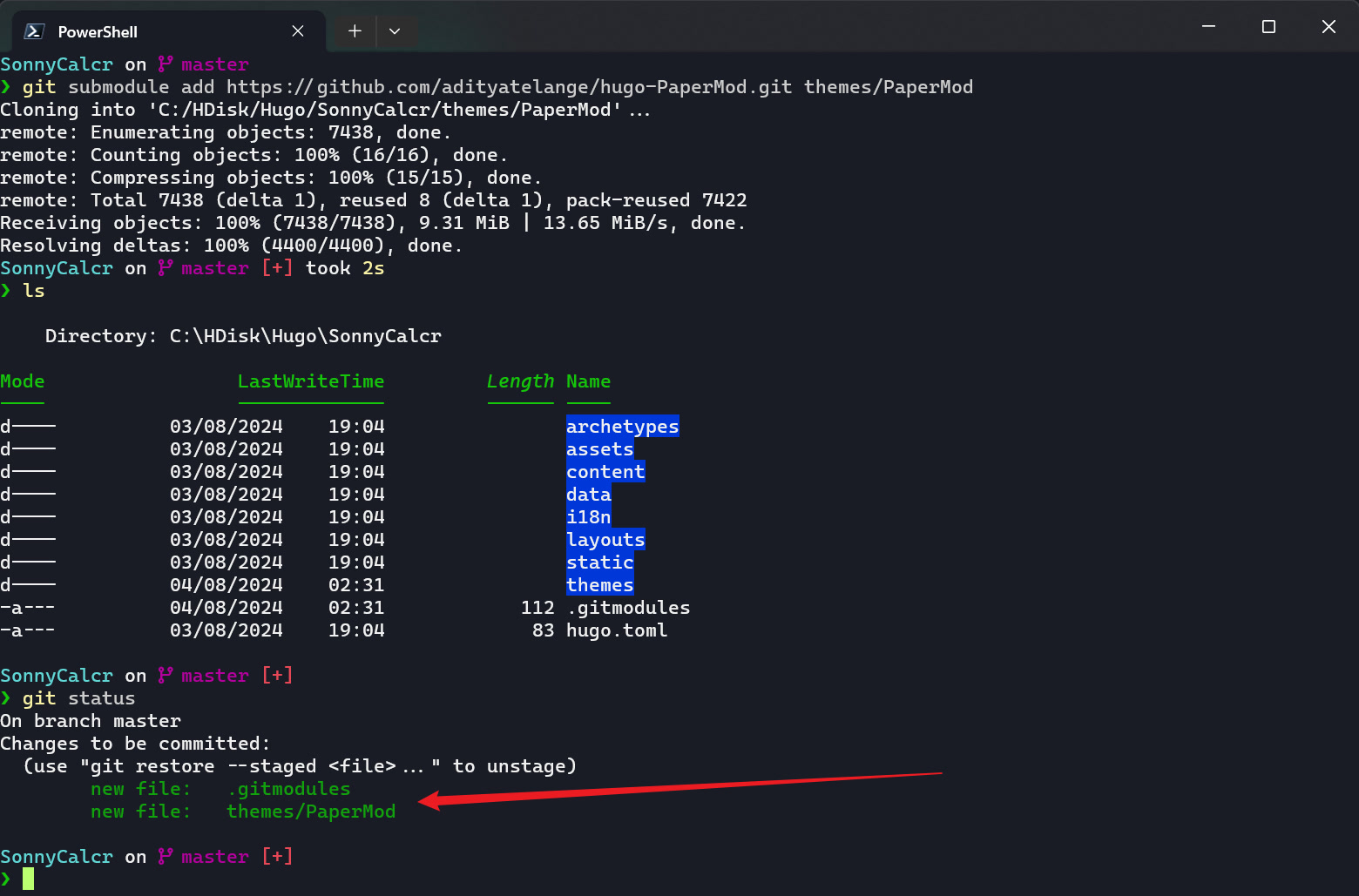
git submodule add https://github.com/adityatelange/hugo-PaperMod.git themes/PaperMod
可以看到,这个命令执行完之后新增的内容,其实就是往 thems 目录下添加了一个主题,而 .gitmodules 则是记录了添加的这个主题的模块的信息,
然后,我们可以再看 PaperMod 这个主题里面都有些什么文件,从下面的命令的输出可以看到,基本上就是一些 html、css 和 js 文件,毕竟是主题嘛,
❯ tree .\themes\PaperMod\ /f
Folder PATH listing for volume Windows
Volume serial number is B867-6B94
C:\HDISK\HUGO\SONNYCALCR\THEMES\PAPERMOD
│   go.mod
│   LICENSE
│   README.md
│   theme.toml
│
├───.github
│   │   PULL_REQUEST_TEMPLATE.md
│   │
│   ├───ISSUE_TEMPLATE
│   │       bug_report.md
│   │       config.yml
│   │       proposal.md
│   │
│   └───workflows
│           gh-pages.yml
│
├───assets
│   ├───css
│   │   ├───common
│   │   │       404.css
│   │   │       archive.css
│   │   │       footer.css
│   │   │       header.css
│   │   │       main.css
│   │   │       post-entry.css
│   │   │       post-single.css
│   │   │       profile-mode.css
│   │   │       search.css
│   │   │       terms.css
│   │   │
│   │   ├───core
│   │   │       license.css
│   │   │       reset.css
│   │   │       theme-vars.css
│   │   │       zmedia.css
│   │   │
│   │   ├───extended
│   │   │       blank.css
│   │   │
│   │   └───includes
│   │           chroma-mod.css
│   │           chroma-styles.css
│   │           scroll-bar.css
│   │
│   └───js
│           fastsearch.js
│           fuse.basic.min.js
│           license.js
│
├───i18n
│       ar.yaml
│       be.yaml
│       bg.yaml
│       bn.yaml
│       ca.yaml
│       ckb.yaml
│       cs.yaml
│       da.yaml
│       de.yaml
│       el.yaml
│       en.yaml
│       eo.yaml
│       es.yaml
│       fa.yaml
│       fr.yaml
│       he.yaml
│       hi.yaml
│       hr.yaml
│       hu.yaml
│       id.yaml
│       it.yaml
│       ja.yaml
│       ko.yaml
│       ku.yaml
│       mn.yaml
│       ms.yaml
│       nl.yaml
│       no.yaml
│       oc.yaml
│       pa.yaml
│       pl.yaml
│       pt.yaml
│       ro.yaml
│       ru.yaml
│       sk.yaml
│       sv.yaml
│       sw.yaml
│       th.yaml
│       tr.yaml
│       uk.yaml
│       uz.yaml
│       vi.yaml
│       zh-tw.yaml
│       zh.yaml
│
├───images
│       screenshot.png
│       tn.png
│
└───layouts
    │   404.html
    │   robots.txt
    │
    ├───partials
    │   │   anchored_headings.html
    │   │   author.html
    │   │   breadcrumbs.html
    │   │   comments.html
    │   │   cover.html
    │   │   edit_post.html
    │   │   extend_footer.html
    │   │   extend_head.html
    │   │   footer.html
    │   │   head.html
    │   │   header.html
    │   │   home_info.html
    │   │   index_profile.html
    │   │   post_canonical.html
    │   │   post_meta.html
    │   │   post_nav_links.html
    │   │   share_icons.html
    │   │   social_icons.html
    │   │   svg.html
    │   │   toc.html
    │   │   translation_list.html
    │   │
    │   └───templates
    │       │   opengraph.html
    │       │   schema_json.html
    │       │   twitter_cards.html
    │       │
    │       └───_funcs
    │               get-page-images.html
    │
    ├───shortcodes
    │       collapse.html
    │       figure.html
    │       inTextImg.html
    │       ltr.html
    │       rawhtml.html
    │       rtl.html
    │
    └───_default
        │   archives.html
        │   baseof.html
        │   index.json
        │   list.html
        │   rss.xml
        │   search.html
        │   single.html
        │   terms.html
        │
        └───_markup
                render-image.html
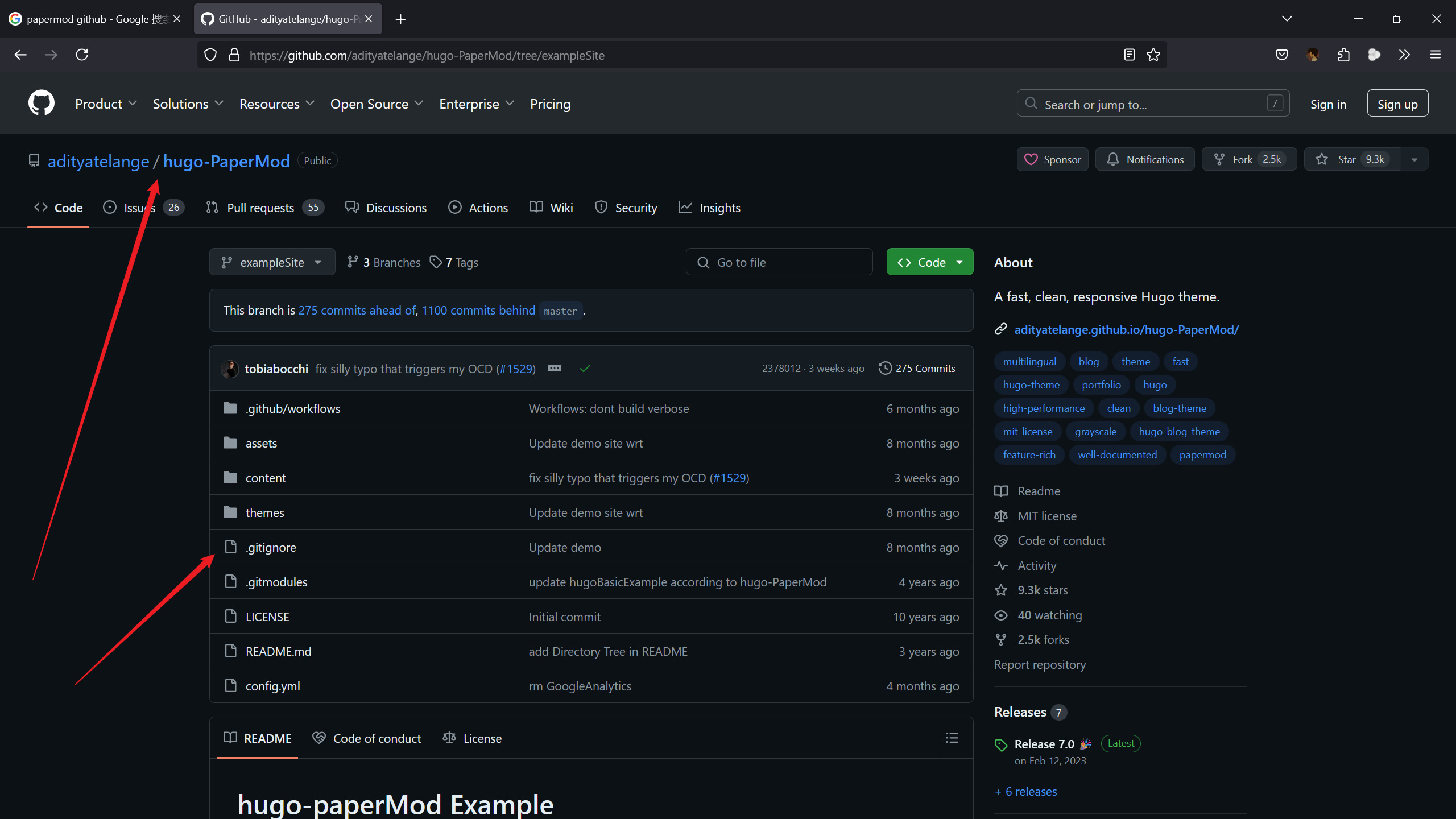
然后,可以添加一下 .gitignore 文件,我这里就直接照抄 PaperMod 的作者部署的那个网站的文件了,
# Compiled Object files, Static and Dynamic libs (Shared Objects)
*.o
*.a
*.so

# Folders
_obj
_test

# Architecture specific extensions/prefixes
*.[568vq]
[568vq].out

*.cgo1.go
*.cgo2.c
_cgo_defun.c
_cgo_gotypes.go
_cgo_export.*

_testmain.go

*.exe
*.test

/public
.DS_Store
.hugo_build.lock
resources/_gen/
其实这里主要就是把 public 目录给排除掉,这个会在网页部署的时候自动生成。
接下来就是正式的主题配置了。
配置好之后相较于默认效果的一些改进
- 支持 giscus 进行评论,且主题支持明暗切换。
- 支持 mathjax,但是如果数学块公式中有超过三个花括号,那么,需要将整个数学公式包括外围的
$$符号都用div标签包裹起来。 - 代码字体自定义为 Jetbrains Mono。代码的亮色主题为 tokyo-night-light,暗色主题为 github-dark。
- 移动端隐藏返回顶部的按钮。
- 一些自定义 css 的效果,如字体大小、链接颜色、目录上的悬浮的鼠标图标等等。
主要就是上面几点,因为文档写得不详细,所以配置上面的内容花费了一些时间和工夫。
一些基本信息的配置
首先,把博客根目录下的 hugo.toml 文件改成 hugo.yaml,因为 PaperMod 给出的配置文件就是 yaml 格式的,所以,这里改一下文件格式,就省去了我们再去将 yaml 的配置内容转为 toml 的麻烦,
Rename-Item .\hugo.toml hugo.yaml
然后,配置一下基本信息,基本上每一个选项我都打上了注释,
baseURL: "https://sonnycalcr.github.io/" # 主站的 URL
title: SonnyCalcr's Blog # 站点标题
copyright: "[©2024 SonnyCalcr's Blog](https://sonnycalcr.github.io/)" # 网站的版权声明,通常显示在页脚
theme: PaperMod # 主题
languageCode: zh-cn # 语言

enableInlineShortcodes: true # shortcode,类似于模板变量,可以在写 markdown 的时候便捷地插入,官方文档中有一个视频讲的很通俗
hasCJKLanguage: true # 是否有 CJK 的字符
enableRobotsTXT: true # 允许生成 robots.txt
buildDrafts: false # 构建时是否包括草稿
buildFuture: false # 构建未来发布的内容
buildExpired: false # 构建过期的内容
enableEmoji: true # 允许 emoji
pygmentsUseClasses: true
defaultContentLanguage: zh # 顶部首先展示的语言界面
defaultContentLanguageInSubdir: false # 是否要在地址栏加上默认的语言代码
配置导航栏
languages:
  zh:
    languageName: "中文" # 展示的语言名
    weight: 1 # 权重
    taxonomies: # 分类系统
      category: categories
      tag: tags
    # https://gohugo.io/content-management/menus/#define-in-site-configuration
    menus:
      main:
        - name: 首页
          pageRef: /
          weight: 4 # 控制在页面上展示的前后顺序
        - name: 归档
          pageRef: archives/
          weight: 5
        - name: 分类
          pageRef: categories/
          weight: 10
        - name: 标签
          pageRef: tags/
          weight: 10
        - name: 搜索
          pageRef: search/
          weight: 20
        - name: 关于
          pageRef: about/
          weight: 21
配置归档
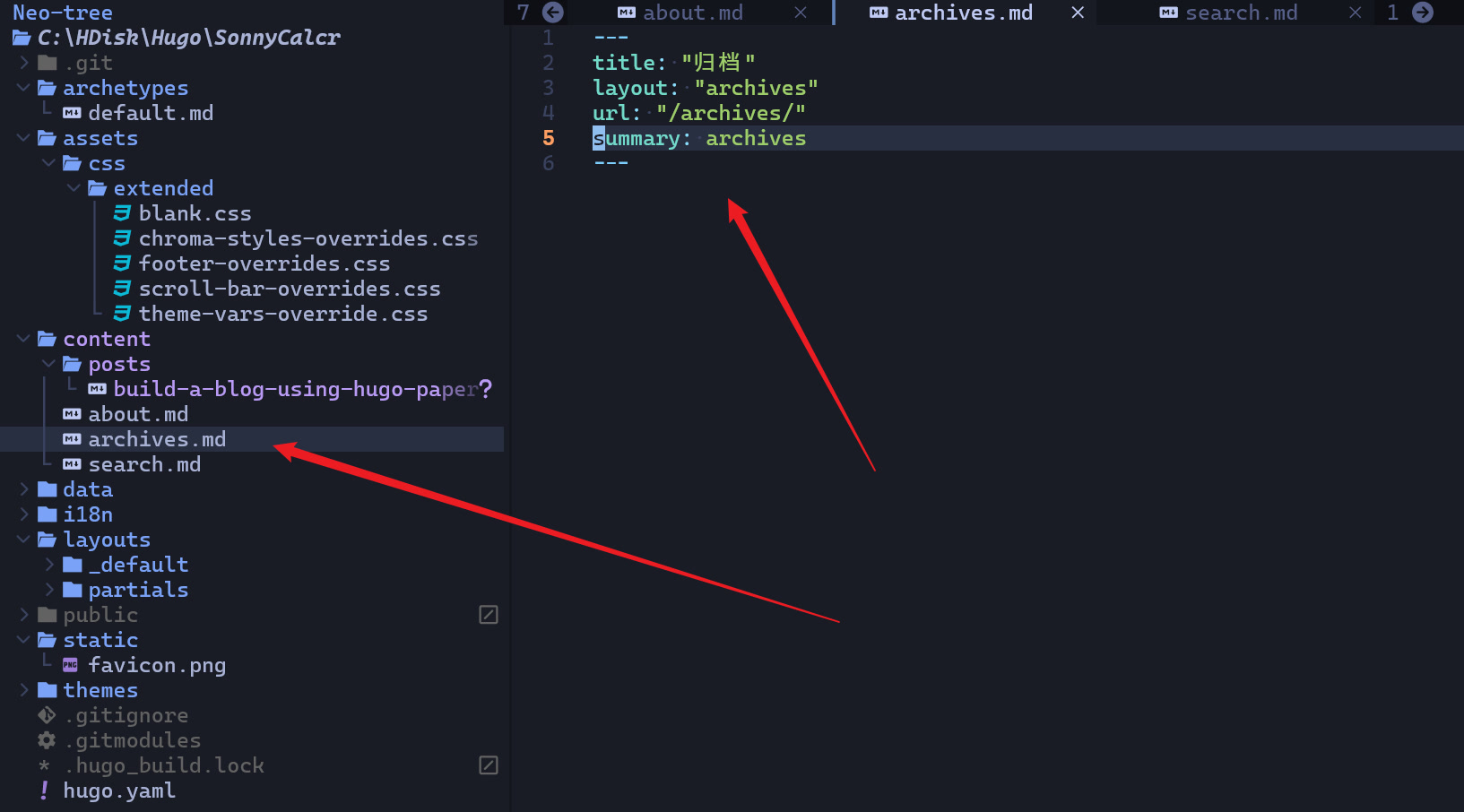
在 content 目录下新建 archives.md 文件,内容如下,
---
title: "归档"
layout: "archives"
url: "/archives/"
summary: archives
---
配置分类和标签
在 hugo 中,这俩是一样的。上面配置好了 taxonomies 之后,我们在博客的 front matter 中加上相关信息即可,就拿本篇博客举例,
title = 'Hugo + PaperMod + Github Pages 搭建一个完善的个人博客(以 Windows11 为例)'
date = 2024-08-04T03:25:53+08:00
categories = ["通用技术"]
tags = ["博客搭建", "Bilibili"]
然后执行一下 hugo server 就可以在浏览器中预览一下效果了。
配置搜索
要在 output 中加上 JSON,
# https://github.com/adityatelange/hugo-PaperMod/wiki/Features#search-page
outputs:
  home:
    - HTML # 生成的静态页面
    - RSS # 这个其实无所谓
    - JSON # necessary for search, 这里的配置修改好之后,一定要重新生成一下
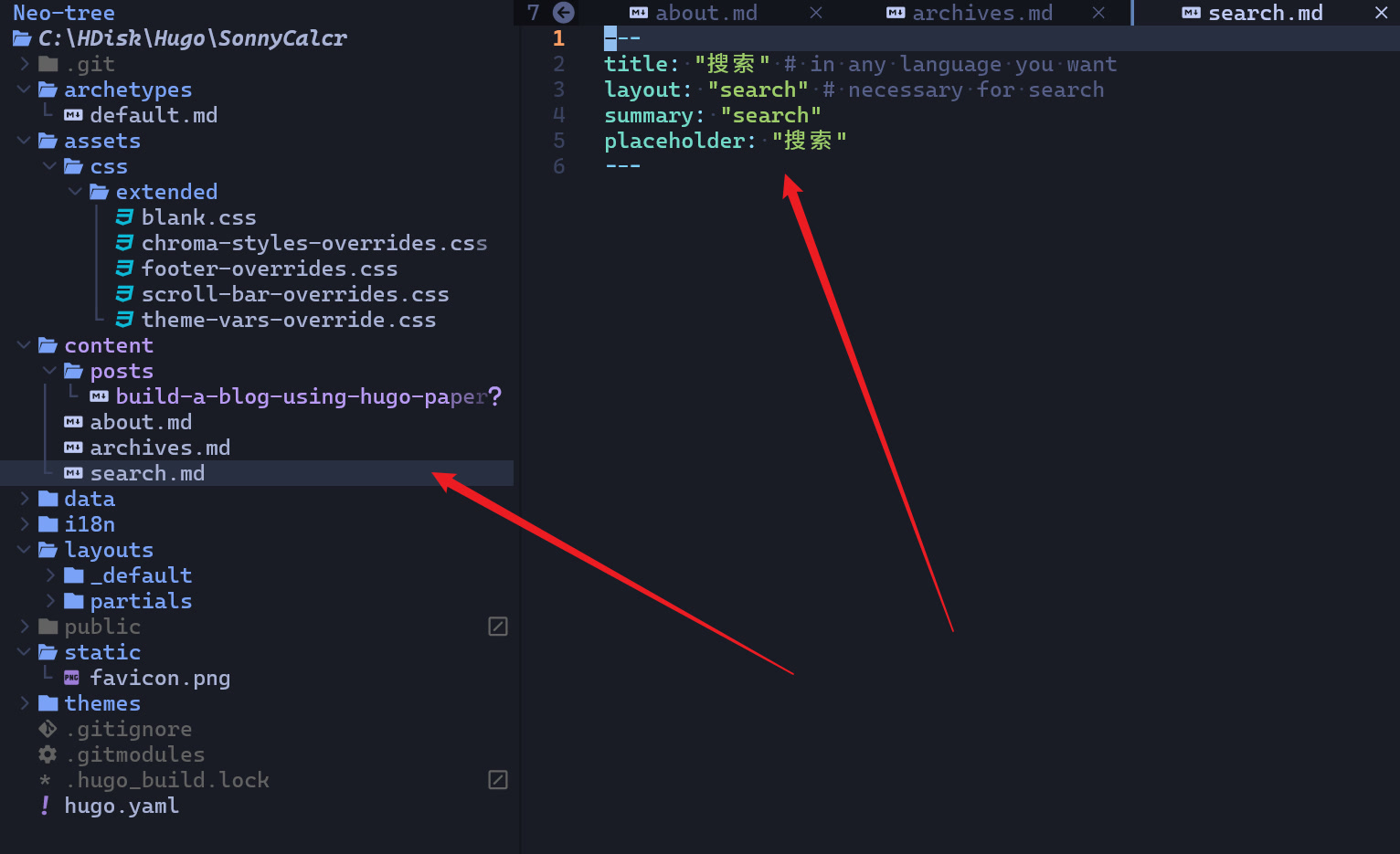
然后,在 content 目录下新建一个 search.md 文件,
---
title: "搜索" # in any language you want
layout: "search" # necessary for search
summary: "search"
placeholder: "搜索"
---
然后是搜索的一些个性化设置,
params:
  # 搜索
  fuseOpts:
      isCaseSensitive: false # 是否大小写敏感
      shouldSort: true # 是否排序
      location: 0
      distance: 1000
      threshold: 0.4
      minMatchCharLength: 0
      # limit: 10 # refer: https://www.fusejs.io/api/methods.html#search
      keys: ["title", "permalink", "summary", "content"]
      includeMatches: true
这样以来,搜索就可以正常工作了,
配置关于页面
新建两个文件,一个是 layouts/_default 目录下下的 about.html,
{{- define "main" }}

<header class="page-header">
    <h1>{{ .Title }}</h1>
    {{- if .Description }}
    <div class="post-description">
      {{ .Description }}
    </div>
    {{- end }}
  </header>

<section>
  <br>
  {{ .Content }}
</section>

{{- end }}{{/* end main */}}
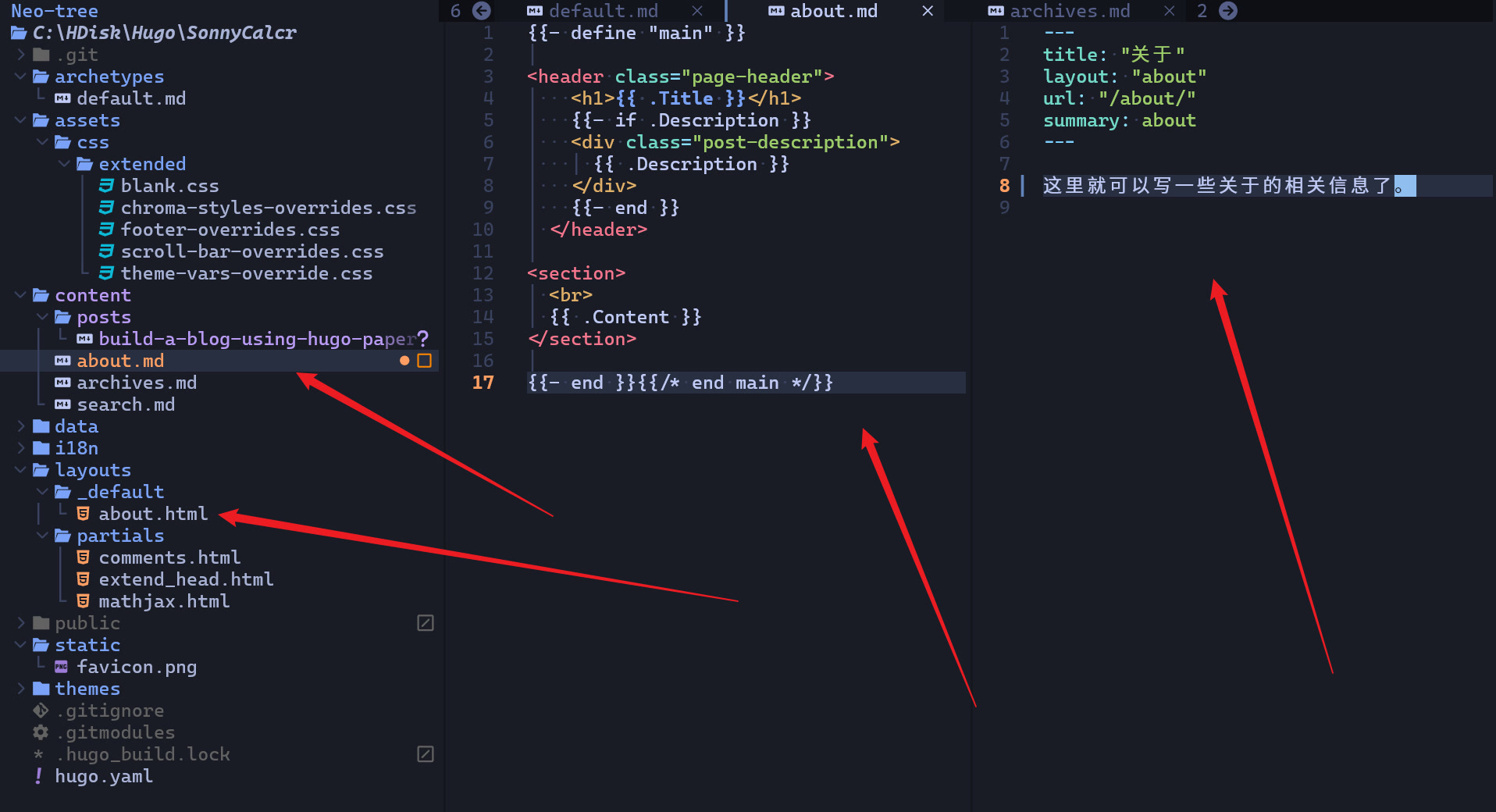
另一个是 content 目录下的 about.md,
---
title: "关于"
layout: "about"
url: "/about/"
summary: about
---

这里就可以写一些关于的相关信息了。
配置评论
这里的评论使用了 giscus 插件。
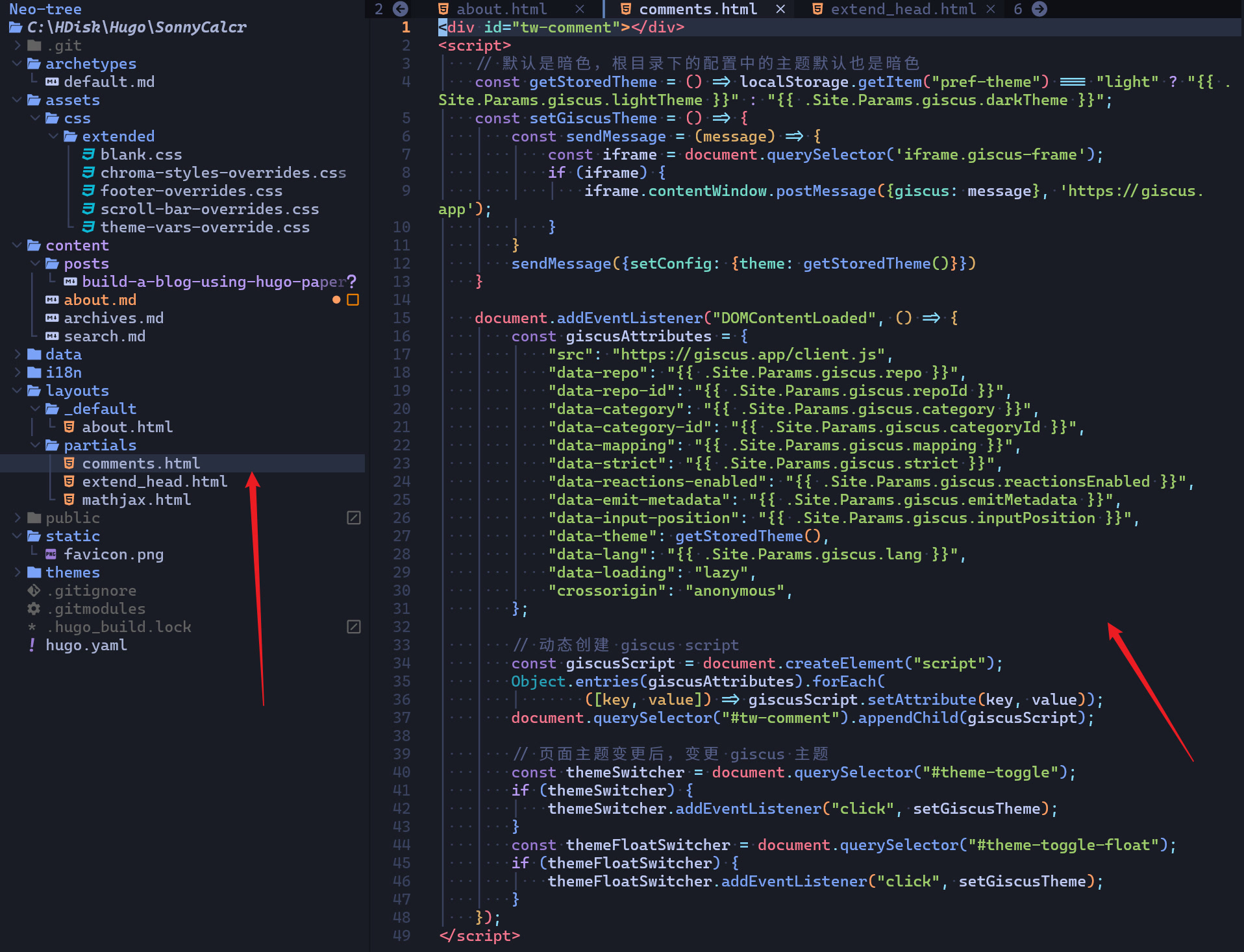
先在 layouts/partials 下新建一个 comments.html 文件,
<div id="tw-comment"></div>
<script>
    // 默认是暗色,根目录下的配置中的主题默认也是暗色
    const getStoredTheme = () => localStorage.getItem("pref-theme") === "light" ? "{{ .Site.Params.giscus.lightTheme }}" : "{{ .Site.Params.giscus.darkTheme }}";
    const setGiscusTheme = () => {
        const sendMessage = (message) => {
            const iframe = document.querySelector('iframe.giscus-frame');
            if (iframe) {
                iframe.contentWindow.postMessage({giscus: message}, 'https://giscus.app');
            }
        }
        sendMessage({setConfig: {theme: getStoredTheme()}})
    }

    document.addEventListener("DOMContentLoaded", () => {
        const giscusAttributes = {
            "src": "https://giscus.app/client.js",
            "data-repo": "{{ .Site.Params.giscus.repo }}",
            "data-repo-id": "{{ .Site.Params.giscus.repoId }}",
            "data-category": "{{ .Site.Params.giscus.category }}",
            "data-category-id": "{{ .Site.Params.giscus.categoryId }}",
            "data-mapping": "{{ .Site.Params.giscus.mapping }}",
            "data-strict": "{{ .Site.Params.giscus.strict }}",
            "data-reactions-enabled": "{{ .Site.Params.giscus.reactionsEnabled }}",
            "data-emit-metadata": "{{ .Site.Params.giscus.emitMetadata }}",
            "data-input-position": "{{ .Site.Params.giscus.inputPosition }}",
            "data-theme": getStoredTheme(),
            "data-lang": "{{ .Site.Params.giscus.lang }}",
            "data-loading": "lazy",
            "crossorigin": "anonymous",
        };

        // 动态创建 giscus script
        const giscusScript = document.createElement("script");
        Object.entries(giscusAttributes).forEach(
                ([key, value]) => giscusScript.setAttribute(key, value));
        document.querySelector("#tw-comment").appendChild(giscusScript);

        // 页面主题变更后,变更 giscus 主题
        const themeSwitcher = document.querySelector("#theme-toggle");
        if (themeSwitcher) {
            themeSwitcher.addEventListener("click", setGiscusTheme);
        }
        const themeFloatSwitcher = document.querySelector("#theme-toggle-float");
        if (themeFloatSwitcher) {
            themeFloatSwitcher.addEventListener("click", setGiscusTheme);
        }
    });
</script>
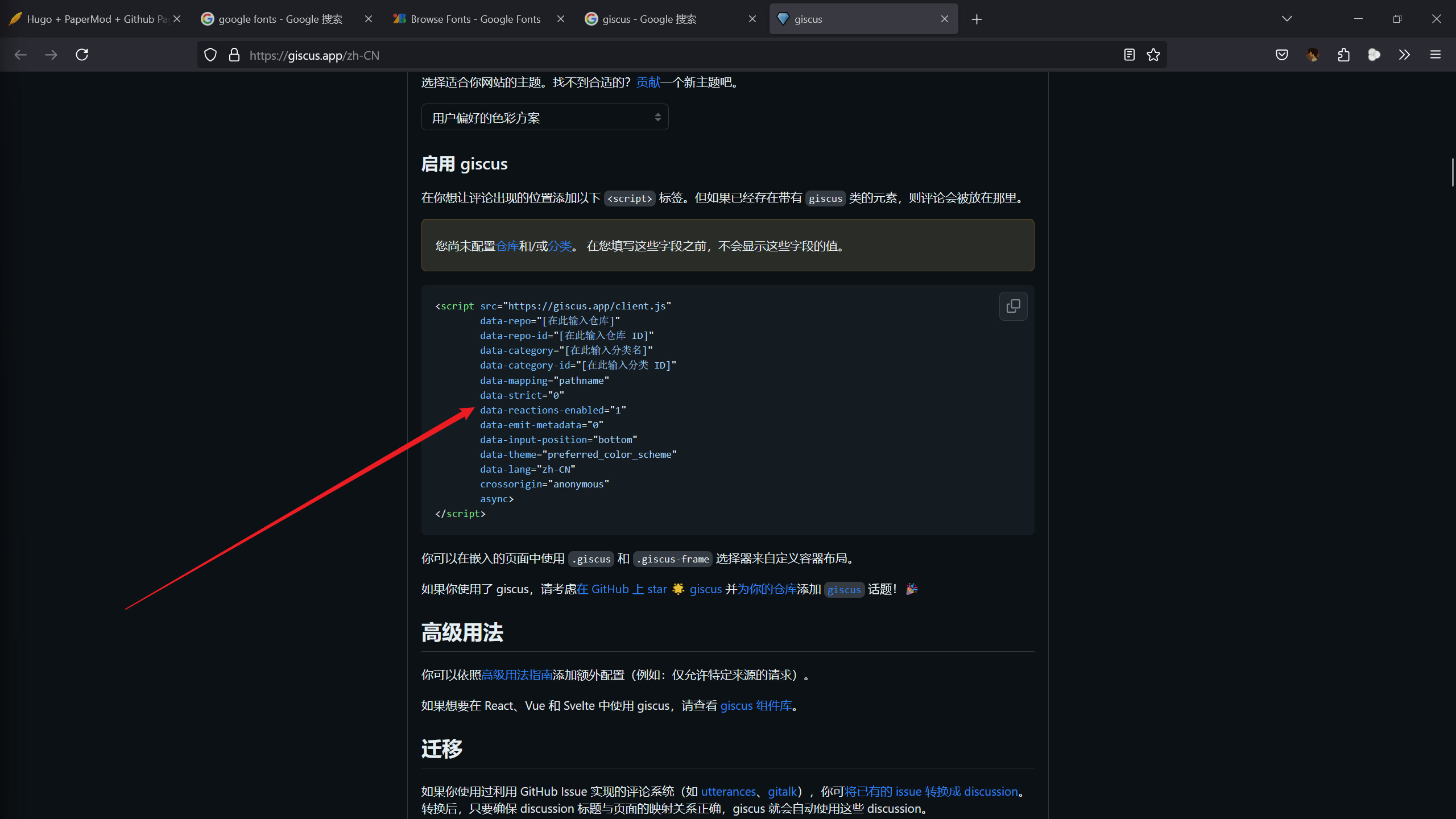
然后,根据 giscus 官网的指导,最后生成一份代码,
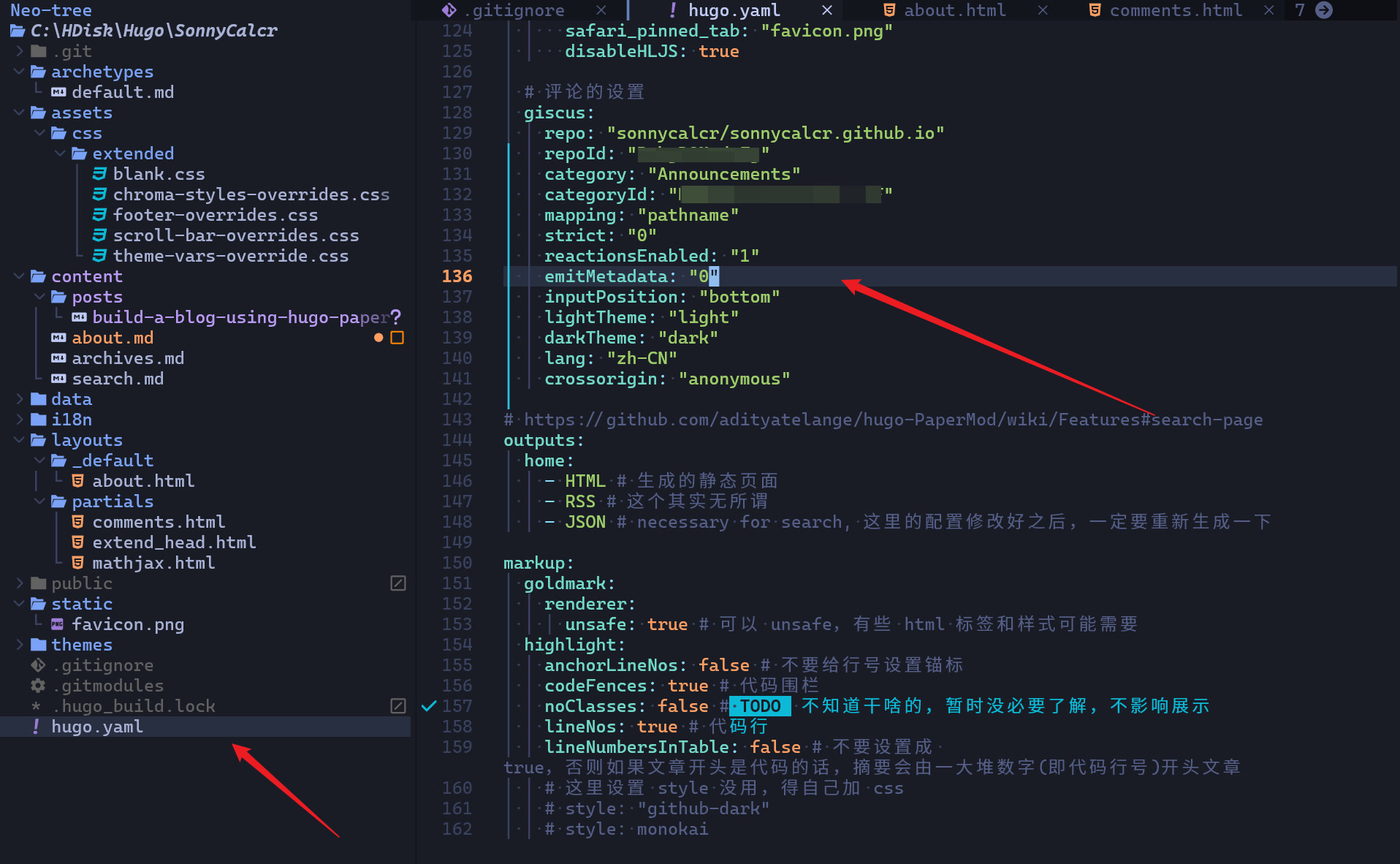
然后,把相应的字段提取到配置中,
params:
  # 评论的设置
  giscus:
    repo: "sonnycalcr/sonnycalcr.github.io"
    repoId: "xxxxxx"
    category: "Announcements"
    categoryId: "xxxxx"
    mapping: "pathname"
    strict: "0"
    reactionsEnabled: "1"
    emitMetadata: "0"
    inputPosition: "bottom"
    lightTheme: "light"
    darkTheme: "dark"
    lang: "zh-CN"
    crossorigin: "anonymous"
这样就可以正常使用了。
配置数学公式
这里使用的是 mathjax。
我们需要添加两个文件,一个是 layouts/partials 下的 mathjax.html 文件,如下,
<script type="text/javascript"
        async
        src="https://cdn.bootcss.com/mathjax/2.7.3/MathJax.js?config=TeX-AMS-MML_HTMLorMML">
MathJax.Hub.Config({
  tex2jax: {
    inlineMath: [['$','$'], ['\\(','\\)']],
    displayMath: [['$$','$$'], ['\[\[','\]\]']],
    processEscapes: true,
    processEnvironments: true,
    skipTags: ['script', 'noscript', 'style', 'textarea', 'pre'],
    TeX: { equationNumbers: { autoNumber: "AMS" },
         extensions: ["AMSmath.js", "AMSsymbols.js"] }
  }
});

MathJax.Hub.Queue(function() {
    // Fix <code> tags after MathJax finishes running. This is a
    // hack to overcome a shortcoming of Markdown. Discussion at
    // https://github.com/mojombo/jekyll/issues/199
    var all = MathJax.Hub.getAllJax(), i;
    for(i = 0; i < all.length; i += 1) {
        all[i].SourceElement().parentNode.className += ' has-jax';
    }
});
</script>

<style>
code.has-jax {
    font: inherit;
    font-size: 100%;
    background: inherit;
    border: inherit;
    color: #515151;
}
</style>
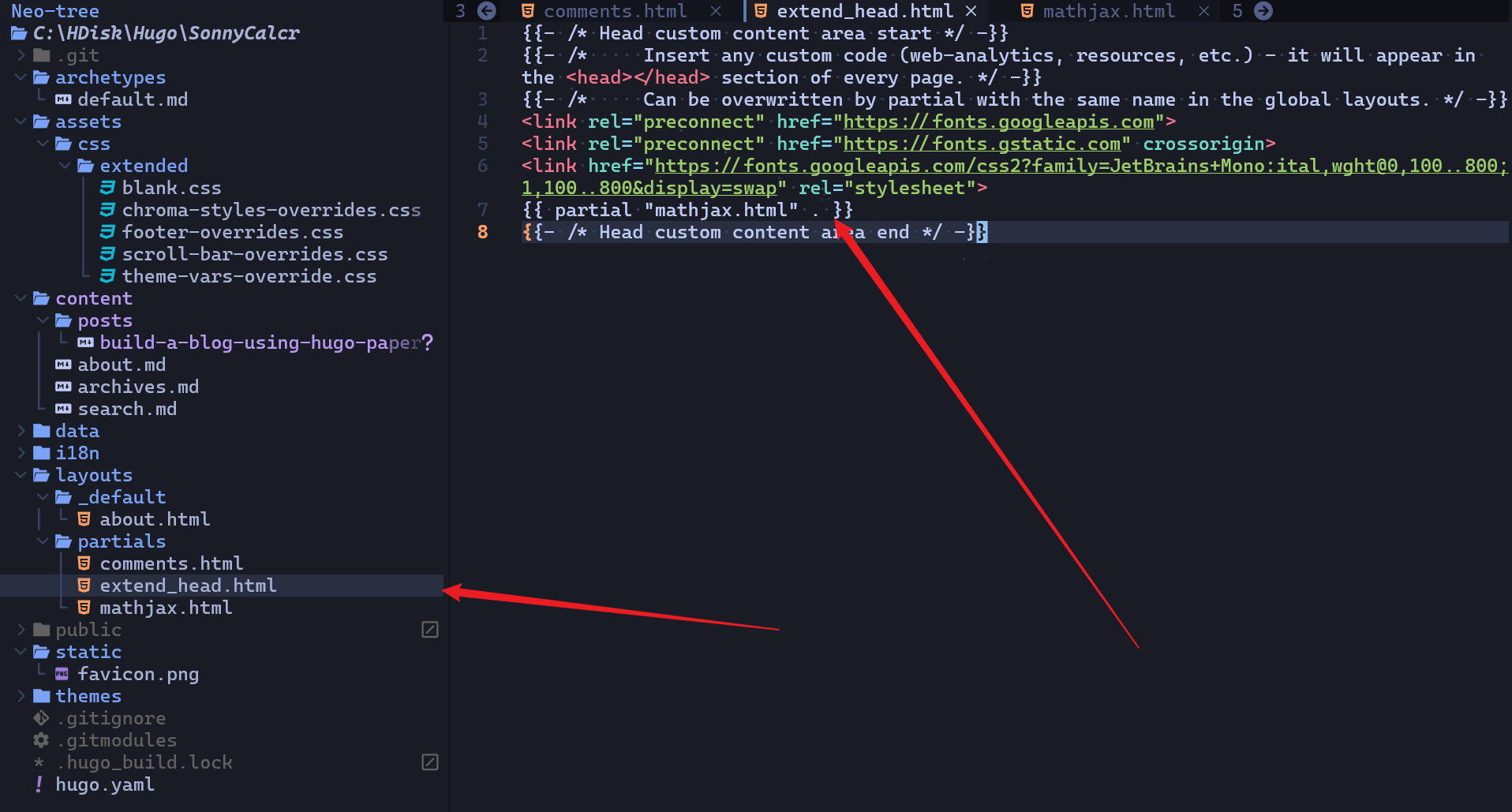
另一个是 layouts/partials 下的 extend_head.html 文件,
{{- /* Head custom content area start */ -}}
{{- /*     Insert any custom code (web-analytics, resources, etc.) - it will appear in the <head></head> section of every page. */ -}}
{{- /*     Can be overwritten by partial with the same name in the global layouts. */ -}}
{{ partial "mathjax.html" . }}
{{- /* Head custom content area end */ -}}
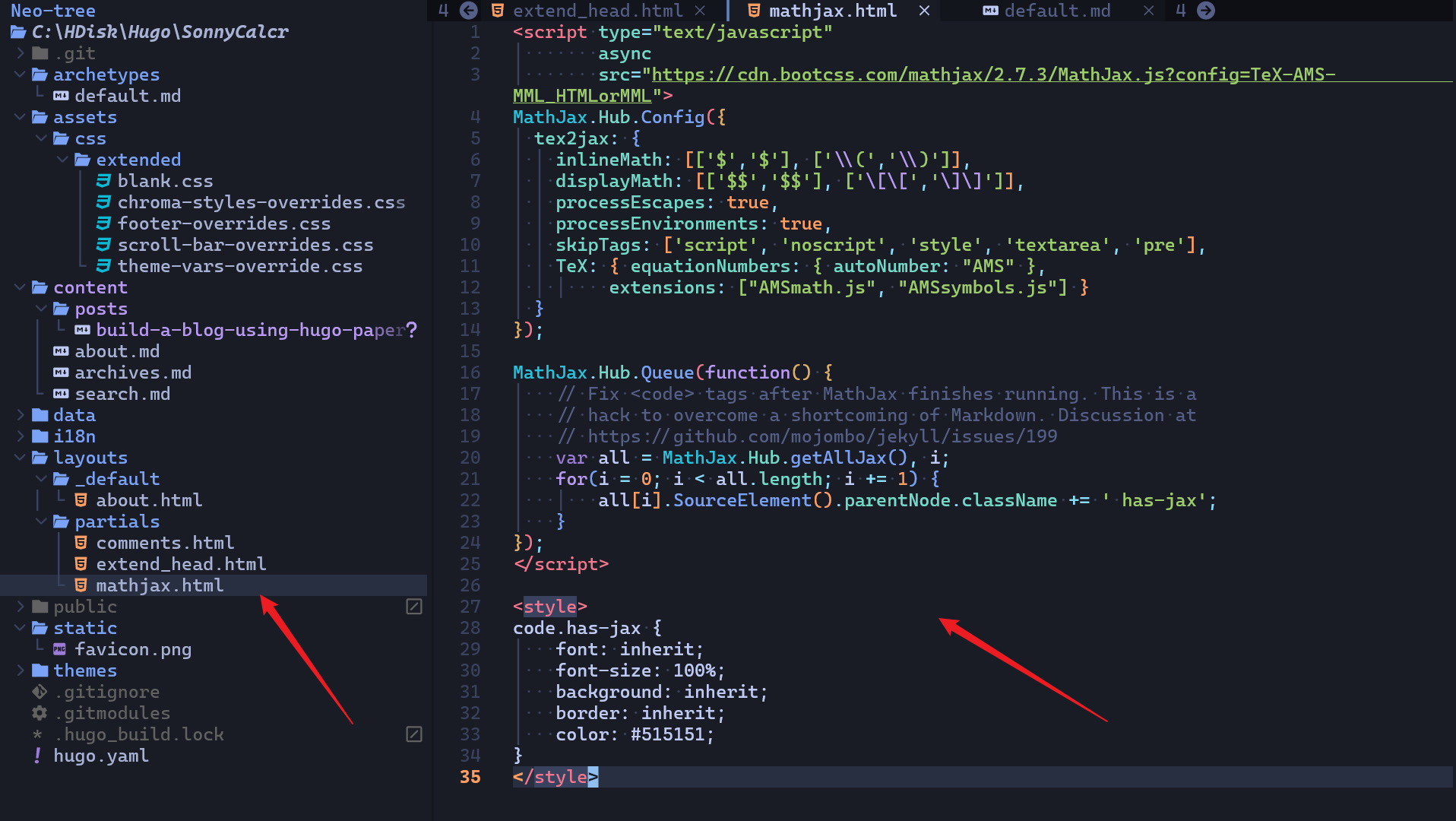
到这里,数学公式就可以正常使用了,我们来写一点数学公式试一下,
行内数学公式:$a^2 + b^2 = c^2$。

块公式,

$$
a^2 + b^2 = c^2
$$

<div>
$$
\boldsymbol{x}_{i+1}+\boldsymbol{x}_{i+2}=\boldsymbol{x}_{i+3}
$$
</div>
渲染出来的效果如下,
行内数学公式:$a^2 + b^2 = c^2$。
块公式,
$$ a^2 + b^2 = c^2 $$
$$ \boldsymbol{x}_{i+1}+\boldsymbol{x}_{i+2}=\boldsymbol{x}_{i+3} $$
上面的第二个公式之所以要用 div 包裹起来,是因为这里的数学公式如果有超过了三对花括号,那么,其解析和转义就会出问题,这个和 hugo 有关目前折中的方案就是上面这种在外面套一层 div。
给代码换个字体
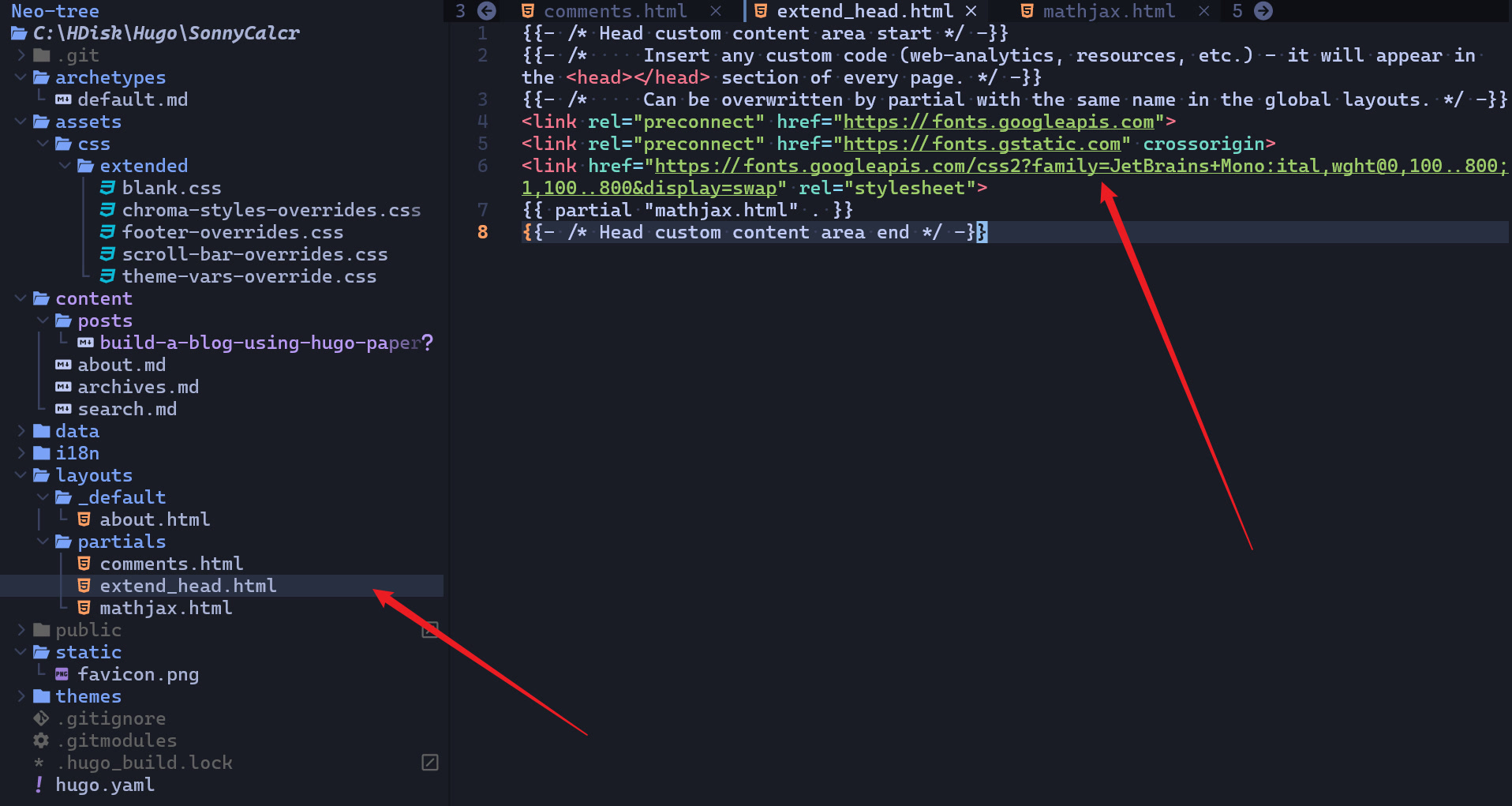
先到谷歌字体 中找一款开源字体,我这里选用的是 Jetbrains Mono,然后复制其信息到 layouts/partials/extend_head.html 中,
<link rel="preconnect" href="https://fonts.googleapis.com">
<link rel="preconnect" href="https://fonts.gstatic.com" crossorigin>
<link href="https://fonts.googleapis.com/css2?family=JetBrains+Mono:ital,wght@0,100..800;1,100..800&display=swap" rel="stylesheet">
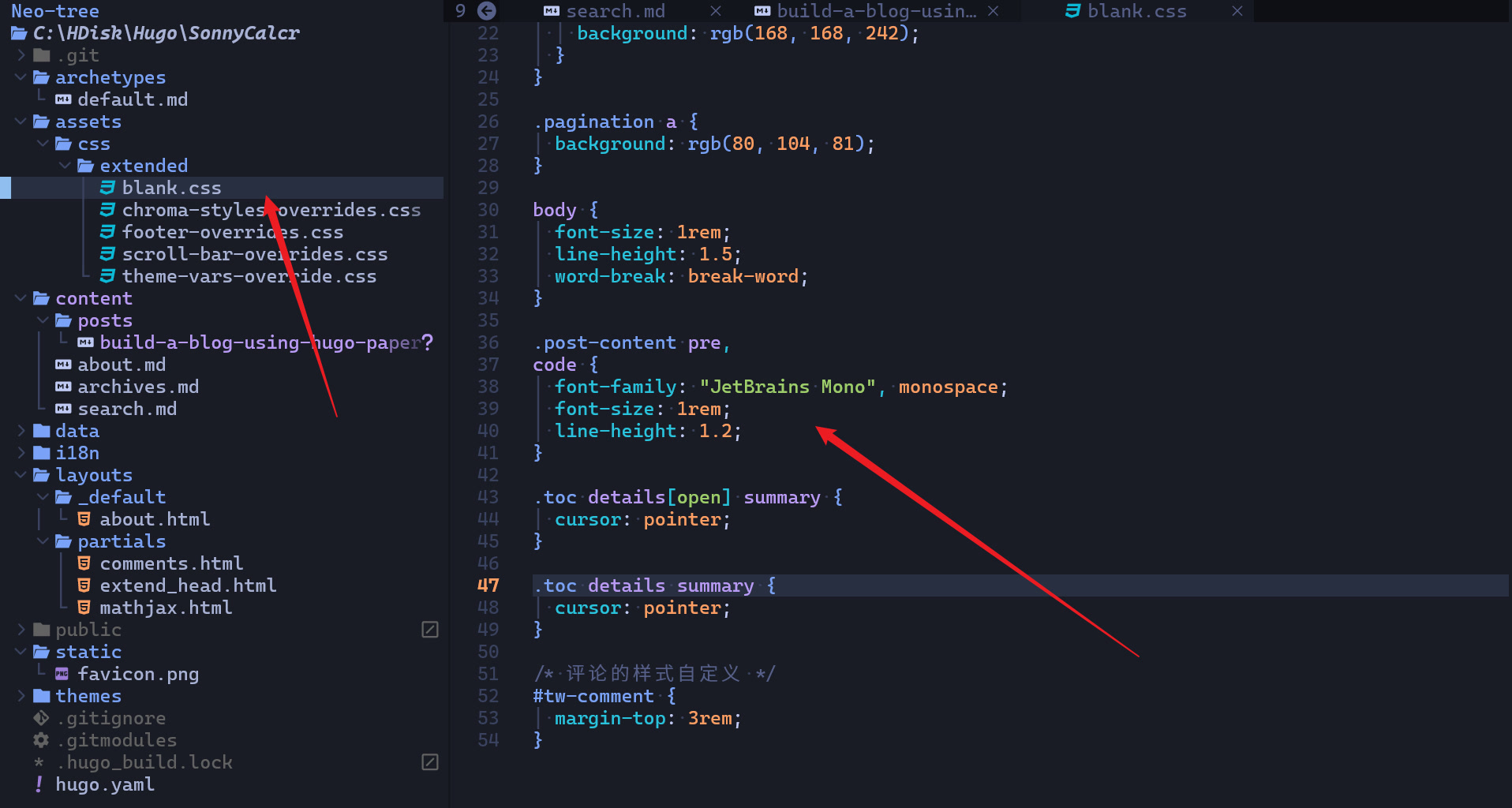
然后,新建一个 assets/css/extended/blank.css 文件,添加样式如下,
.post-content pre,
code {
  font-family: "JetBrains Mono", monospace;
  font-size: 1rem;
  line-height: 1.2;
}
这样就可以生效了,如果发现不生效,可以重新执行一下 hugo server 试试。
代码明暗样式切换
我这里使用的不是 highlightjs,而是 hugo 推荐的 chroma,这样的话,我们先建立一个 assets/css/extended/chroma-styles-overrides.css 文件,
然后,执行一下命令生成你想要的样式,
hugo gen chromastyles --style=tokyonight-day > syntax.css
然后,把 syntax.css 中的内容复制到 chroma-styles-overrides.html 文件中,如果是暗色主题,那么,生成的样式则要包裹在 .dark {} 里面,我这里生成了两个样式,白天的样式是 tokyonight-day,黑暗的样式是 github-dark,同时,要记得将生成的样式中有些空缺的部分给补上默认的颜色,我这里白天的颜色补的是黑色,夜晚的颜色补的是白色,不然代码的样式会出问题,我这里完整的样式如下,
/* Background */ .bg { color:#3760bf;background-color:#e1e2e7; }
/* PreWrapper */ .chroma { color:#3760bf;background-color:#e1e2e7; }
/* Other */ .chroma .x { color: #000 }
/* Error */ .chroma .err { color:#c64343 }
/* CodeLine */ .chroma .cl { color: #000 }
/* LineLink */ .chroma .lnlinks { outline:none;text-decoration:none;color:inherit }
/* LineTableTD */ .chroma .lntd { vertical-align:top;padding:0;margin:0;border:0; }
/* LineTable */ .chroma .lntable { border-spacing:0;padding:0;margin:0;border:0; }
/* LineHighlight */ .chroma .hl { background-color:#a1a6c5 }
/* LineNumbersTable */ .chroma .lnt { white-space:pre;-webkit-user-select:none;user-select:none;margin-right:0.4em;padding:0 0.4em 0 0.4em;color:#6172b0 }
/* LineNumbers */ .chroma .ln { white-space:pre;-webkit-user-select:none;user-select:none;margin-right:0.4em;padding:0 0.4em 0 0.4em;color:#6172b0 }
/* Line */ .chroma .line { display:flex; }
/* Keyword */ .chroma .k { color:#9854f1 }
/* KeywordConstant */ .chroma .kc { color:#8c6c3e }
/* KeywordDeclaration */ .chroma .kd { color:#9d7cd8 }
/* KeywordNamespace */ .chroma .kn { color:#007197 }
/* KeywordPseudo */ .chroma .kp { color:#9854f1 }
/* KeywordReserved */ .chroma .kr { color:#9854f1 }
/* KeywordType */ .chroma .kt { color:#0db9d7 }
/* Name */ .chroma .n { color: #000 }
/* NameAttribute */ .chroma .na { color:#2e7de9 }
/* NameBuiltin */ .chroma .nb { color:#587539 }
/* NameBuiltinPseudo */ .chroma .bp { color:#587539 }
/* NameClass */ .chroma .nc { color:#b15c00 }
/* NameConstant */ .chroma .no { color:#b15c00 }
/* NameDecorator */ .chroma .nd { color:#2e7de9;font-weight:bold }
/* NameEntity */ .chroma .ni { color:#007197 }
/* NameException */ .chroma .ne { color:#8c6c3e }
/* NameFunction */ .chroma .nf { color:#2e7de9 }
/* NameFunctionMagic */ .chroma .fm { color:#2e7de9 }
/* NameLabel */ .chroma .nl { color:#587539 }
/* NameNamespace */ .chroma .nn { color:#8c6c3e }
/* NameOther */ .chroma .nx { color: #000 }
/* NameProperty */ .chroma .py { color:#8c6c3e }
/* NameTag */ .chroma .nt { color:#9854f1 }
/* NameVariable */ .chroma .nv { color: #000 }
/* NameVariableClass */ .chroma .vc { color: #000 }
/* NameVariableGlobal */ .chroma .vg { color: #000 }
/* NameVariableInstance */ .chroma .vi { color: #000 }
/* NameVariableMagic */ .chroma .vm { color: #000 }
/* Literal */ .chroma .l { color: #000 }
/* LiteralDate */ .chroma .ld { color: #000 }
/* LiteralString */ .chroma .s { color:#587539 }
/* LiteralStringAffix */ .chroma .sa { color:#9d7cd8 }
/* LiteralStringBacktick */ .chroma .sb { color:#587539 }
/* LiteralStringChar */ .chroma .sc { color:#587539 }
/* LiteralStringDelimiter */ .chroma .dl { color:#2e7de9 }
/* LiteralStringDoc */ .chroma .sd { color:#a1a6c5 }
/* LiteralStringDouble */ .chroma .s2 { color:#587539 }
/* LiteralStringEscape */ .chroma .se { color:#2e7de9 }
/* LiteralStringHeredoc */ .chroma .sh { color:#a1a6c5 }
/* LiteralStringInterpol */ .chroma .si { color:#587539 }
/* LiteralStringOther */ .chroma .sx { color:#587539 }
/* LiteralStringRegex */ .chroma .sr { color:#007197 }
/* LiteralStringSingle */ .chroma .s1 { color:#587539 }
/* LiteralStringSymbol */ .chroma .ss { color:#587539 }
/* LiteralNumber */ .chroma .m { color:#8c6c3e }
/* LiteralNumberBin */ .chroma .mb { color:#8c6c3e }
/* LiteralNumberFloat */ .chroma .mf { color:#8c6c3e }
/* LiteralNumberHex */ .chroma .mh { color:#8c6c3e }
/* LiteralNumberInteger */ .chroma .mi { color:#8c6c3e }
/* LiteralNumberIntegerLong */ .chroma .il { color:#8c6c3e }
/* LiteralNumberOct */ .chroma .mo { color:#8c6c3e }
/* Operator */ .chroma .o { color:#587539;font-weight:bold }
/* OperatorWord */ .chroma .ow { color:#587539;font-weight:bold }
/* Punctuation */ .chroma .p { color: #000 }
/* Comment */ .chroma .c { color:#a1a6c5;font-style:italic }
/* CommentHashbang */ .chroma .ch { color:#a1a6c5;font-style:italic }
/* CommentMultiline */ .chroma .cm { color:#a1a6c5;font-style:italic }
/* CommentSingle */ .chroma .c1 { color:#a1a6c5;font-style:italic }
/* CommentSpecial */ .chroma .cs { color:#a1a6c5;font-style:italic }
/* CommentPreproc */ .chroma .cp { color:#a1a6c5;font-style:italic }
/* CommentPreprocFile */ .chroma .cpf { color:#a1a6c5;font-weight:bold;font-style:italic }
/* Generic */ .chroma .g { color: #000 }
/* GenericDeleted */ .chroma .gd { color:#c64343;background-color:#e9e9ed }
/* GenericEmph */ .chroma .ge { font-style:italic }
/* GenericError */ .chroma .gr { color:#c64343 }
/* GenericHeading */ .chroma .gh { color:#8c6c3e;font-weight:bold }
/* GenericInserted */ .chroma .gi { color:#587539;background-color:#e9e9ed }
/* GenericOutput */ .chroma .go { color: #000 }
/* GenericPrompt */ .chroma .gp { color: #000 }
/* GenericStrong */ .chroma .gs { font-weight:bold }
/* GenericSubheading */ .chroma .gu { color:#8c6c3e;font-weight:bold }
/* GenericTraceback */ .chroma .gt { color:#c64343 }
/* GenericUnderline */ .chroma .gl { text-decoration:underline }
/* TextWhitespace */ .chroma .w { color: #000 }

.dark {
  /* Background */ .bg { color:#e6edf3;background-color:#0d1117; }
  /* PreWrapper */ .chroma { color:#e6edf3;background-color:#0d1117; }
  /* Other */ .chroma .x { color: #fff }
  /* Error */ .chroma .err { color:#f85149 }
  /* CodeLine */ .chroma .cl { color: #fff }
  /* LineLink */ .chroma .lnlinks { outline:none;text-decoration:none;color:inherit }
  /* LineTableTD */ .chroma .lntd { vertical-align:top;padding:0;margin:0;border:0; }
  /* LineTable */ .chroma .lntable { border-spacing:0;padding:0;margin:0;border:0; }
  /* LineHighlight */ .chroma .hl { background-color:#6e7681 }
  /* LineNumbersTable */ .chroma .lnt { white-space:pre;-webkit-user-select:none;user-select:none;margin-right:0.4em;padding:0 0.4em 0 0.4em;color:#737679 }
  /* LineNumbers */ .chroma .ln { white-space:pre;-webkit-user-select:none;user-select:none;margin-right:0.4em;padding:0 0.4em 0 0.4em;color:#6e7681 }
  /* Line */ .chroma .line { display:flex; }
  /* Keyword */ .chroma .k { color:#ff7b72 }
  /* KeywordConstant */ .chroma .kc { color:#79c0ff }
  /* KeywordDeclaration */ .chroma .kd { color:#ff7b72 }
  /* KeywordNamespace */ .chroma .kn { color:#ff7b72 }
  /* KeywordPseudo */ .chroma .kp { color:#79c0ff }
  /* KeywordReserved */ .chroma .kr { color:#ff7b72 }
  /* KeywordType */ .chroma .kt { color:#ff7b72 }
  /* Name */ .chroma .n { color: #fff }
  /* NameAttribute */ .chroma .na { color: #fff }
  /* NameBuiltin */ .chroma .nb { color: #fff }
  /* NameBuiltinPseudo */ .chroma .bp { color: #fff }
  /* NameClass */ .chroma .nc { color:#f0883e;font-weight:bold }
  /* NameConstant */ .chroma .no { color:#79c0ff;font-weight:bold }
  /* NameDecorator */ .chroma .nd { color:#d2a8ff;font-weight:bold }
  /* NameEntity */ .chroma .ni { color:#ffa657 }
  /* NameException */ .chroma .ne { color:#f0883e;font-weight:bold }
  /* NameFunction */ .chroma .nf { color:#d2a8ff;font-weight:bold }
  /* NameFunctionMagic */ .chroma .fm { color: #fff }
  /* NameLabel */ .chroma .nl { color:#79c0ff;font-weight:bold }
  /* NameNamespace */ .chroma .nn { color:#ff7b72 }
  /* NameOther */ .chroma .nx { color: #fff }
  /* NameProperty */ .chroma .py { color:#79c0ff }
  /* NameTag */ .chroma .nt { color:#7ee787 }
  /* NameVariable */ .chroma .nv { color:#79c0ff }
  /* NameVariableClass */ .chroma .vc { color: #fff }
  /* NameVariableGlobal */ .chroma .vg { color: #fff }
  /* NameVariableInstance */ .chroma .vi { color: #fff }
  /* NameVariableMagic */ .chroma .vm { color: #fff }
  /* Literal */ .chroma .l { color:#a5d6ff }
  /* LiteralDate */ .chroma .ld { color:#79c0ff }
  /* LiteralString */ .chroma .s { color:#a5d6ff }
  /* LiteralStringAffix */ .chroma .sa { color:#79c0ff }
  /* LiteralStringBacktick */ .chroma .sb { color:#a5d6ff }
  /* LiteralStringChar */ .chroma .sc { color:#a5d6ff }
  /* LiteralStringDelimiter */ .chroma .dl { color:#79c0ff }
  /* LiteralStringDoc */ .chroma .sd { color:#a5d6ff }
  /* LiteralStringDouble */ .chroma .s2 { color:#a5d6ff }
  /* LiteralStringEscape */ .chroma .se { color:#79c0ff }
  /* LiteralStringHeredoc */ .chroma .sh { color:#79c0ff }
  /* LiteralStringInterpol */ .chroma .si { color:#a5d6ff }
  /* LiteralStringOther */ .chroma .sx { color:#a5d6ff }
  /* LiteralStringRegex */ .chroma .sr { color:#79c0ff }
  /* LiteralStringSingle */ .chroma .s1 { color:#a5d6ff }
  /* LiteralStringSymbol */ .chroma .ss { color:#a5d6ff }
  /* LiteralNumber */ .chroma .m { color:#a5d6ff }
  /* LiteralNumberBin */ .chroma .mb { color:#a5d6ff }
  /* LiteralNumberFloat */ .chroma .mf { color:#a5d6ff }
  /* LiteralNumberHex */ .chroma .mh { color:#a5d6ff }
  /* LiteralNumberInteger */ .chroma .mi { color:#a5d6ff }
  /* LiteralNumberIntegerLong */ .chroma .il { color:#a5d6ff }
  /* LiteralNumberOct */ .chroma .mo { color:#a5d6ff }
  /* Operator */ .chroma .o { color:#ff7b72;font-weight:bold }
  /* OperatorWord */ .chroma .ow { color:#ff7b72;font-weight:bold }
  /* Punctuation */ .chroma .p { color: #fff }
  /* Comment */ .chroma .c { color:#8b949e;font-style:italic }
  /* CommentHashbang */ .chroma .ch { color:#8b949e;font-style:italic }
  /* CommentMultiline */ .chroma .cm { color:#8b949e;font-style:italic }
  /* CommentSingle */ .chroma .c1 { color:#8b949e;font-style:italic }
  /* CommentSpecial */ .chroma .cs { color:#8b949e;font-weight:bold;font-style:italic }
  /* CommentPreproc */ .chroma .cp { color:#8b949e;font-weight:bold;font-style:italic }
  /* CommentPreprocFile */ .chroma .cpf { color:#8b949e;font-weight:bold;font-style:italic }
  /* Generic */ .chroma .g { color: #fff }
  /* GenericDeleted */ .chroma .gd { color:#ffa198;background-color:#490202 }
  /* GenericEmph */ .chroma .ge { font-style:italic }
  /* GenericError */ .chroma .gr { color:#ffa198 }
  /* GenericHeading */ .chroma .gh { color:#79c0ff;font-weight:bold }
  /* GenericInserted */ .chroma .gi { color:#56d364;background-color:#0f5323 }
  /* GenericOutput */ .chroma .go { color:#8b949e }
  /* GenericPrompt */ .chroma .gp { color:#8b949e }
  /* GenericStrong */ .chroma .gs { font-weight:bold }
  /* GenericSubheading */ .chroma .gu { color:#79c0ff }
  /* GenericTraceback */ .chroma .gt { color:#ff7b72 }
  /* GenericUnderline */ .chroma .gl { text-decoration:underline }
  /* TextWhitespace */ .chroma .w { color:#6e7681 }
}
我在上面提到的生成的样式中空缺的部分,可以看一下下面的样例,
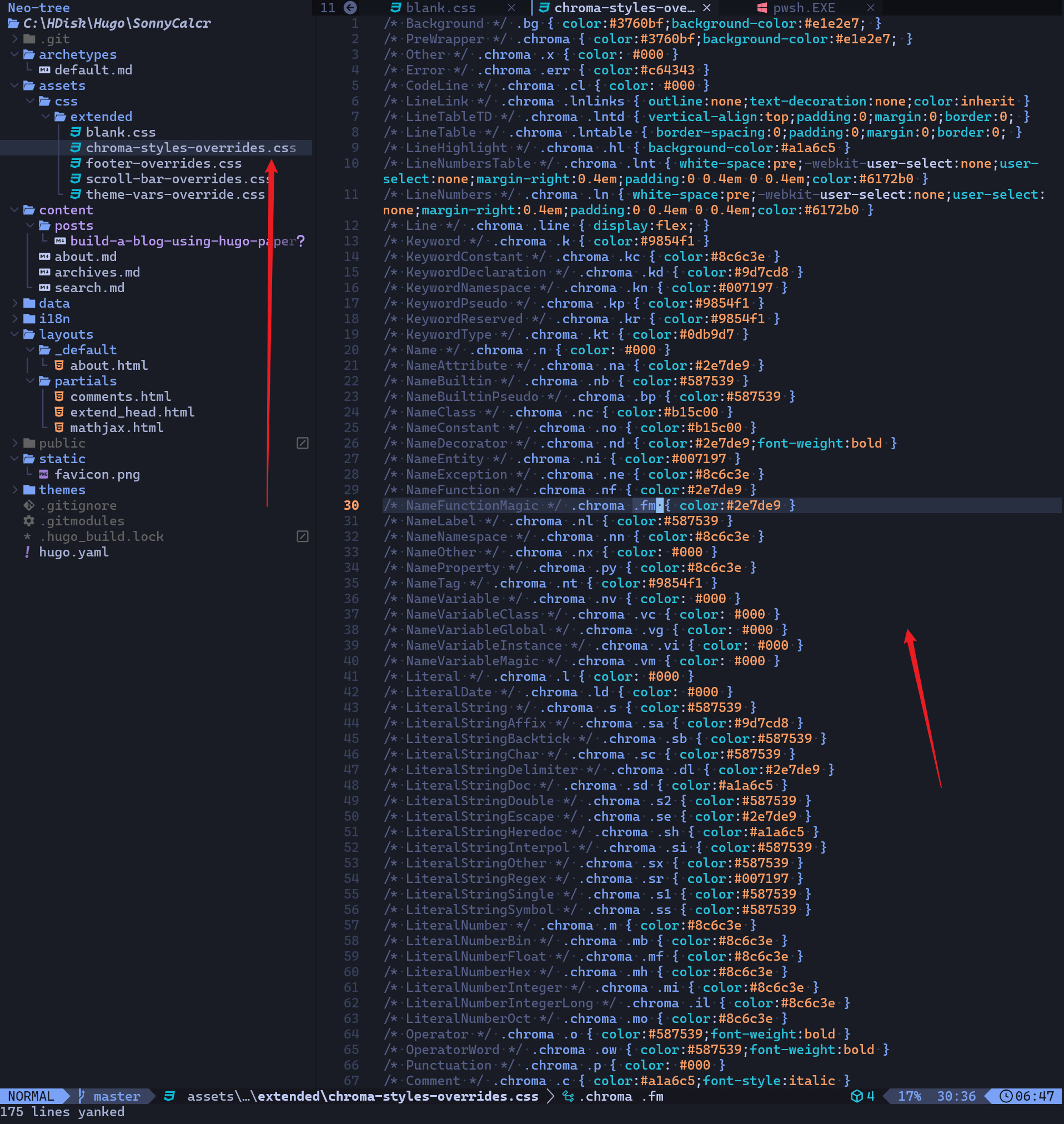
要记得把他们的颜色都补上。
然后,修改一下配置即可,
params:
  assets:
      disableHLJS: true
markup:
  goldmark:
    renderer:
      unsafe: true # 可以 unsafe,有些 html 标签和样式可能需要
  highlight:
    anchorLineNos: false # 不要给行号设置锚标
    codeFences: true # 代码围栏
    noClasses: false # TODO: 不知道干啥的,暂时没必要了解,不影响展示
    lineNos: true # 代码行
    lineNumbersInTable: false # 不要设置成 true,否则如果文章开头是代码的话,摘要会由一大堆数字(即代码行号)开头文章
    # 这里设置 style 没用,得自己加 css
    # style: "github-dark"
    # style: monokai
修改网页的 favicon
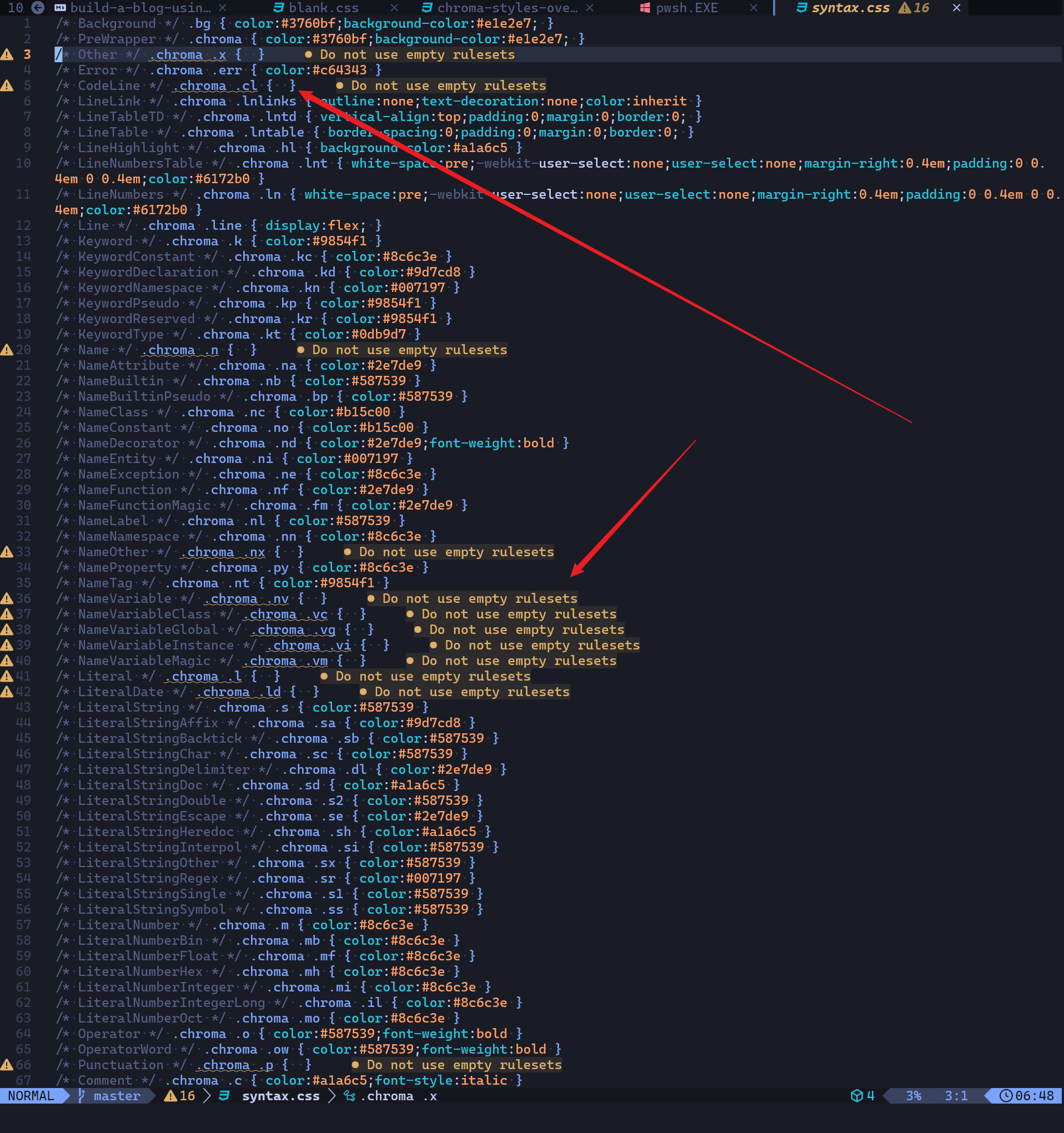
先到 flaticon 网站中找一个 icon 图片,然后放到 static 目录下,
然后,修改配置,
params:
  # 设置网站的标签页的图标,即 favicon
  assets:
      favicon: "favicon.png"
      favicon16x16: "favicon.png"
      favicon32x32: "favicon.png"
      apple_touch_icon: "favicon.png"
      safari_pinned_tab: "favicon.png"
其他一些小的样式修改
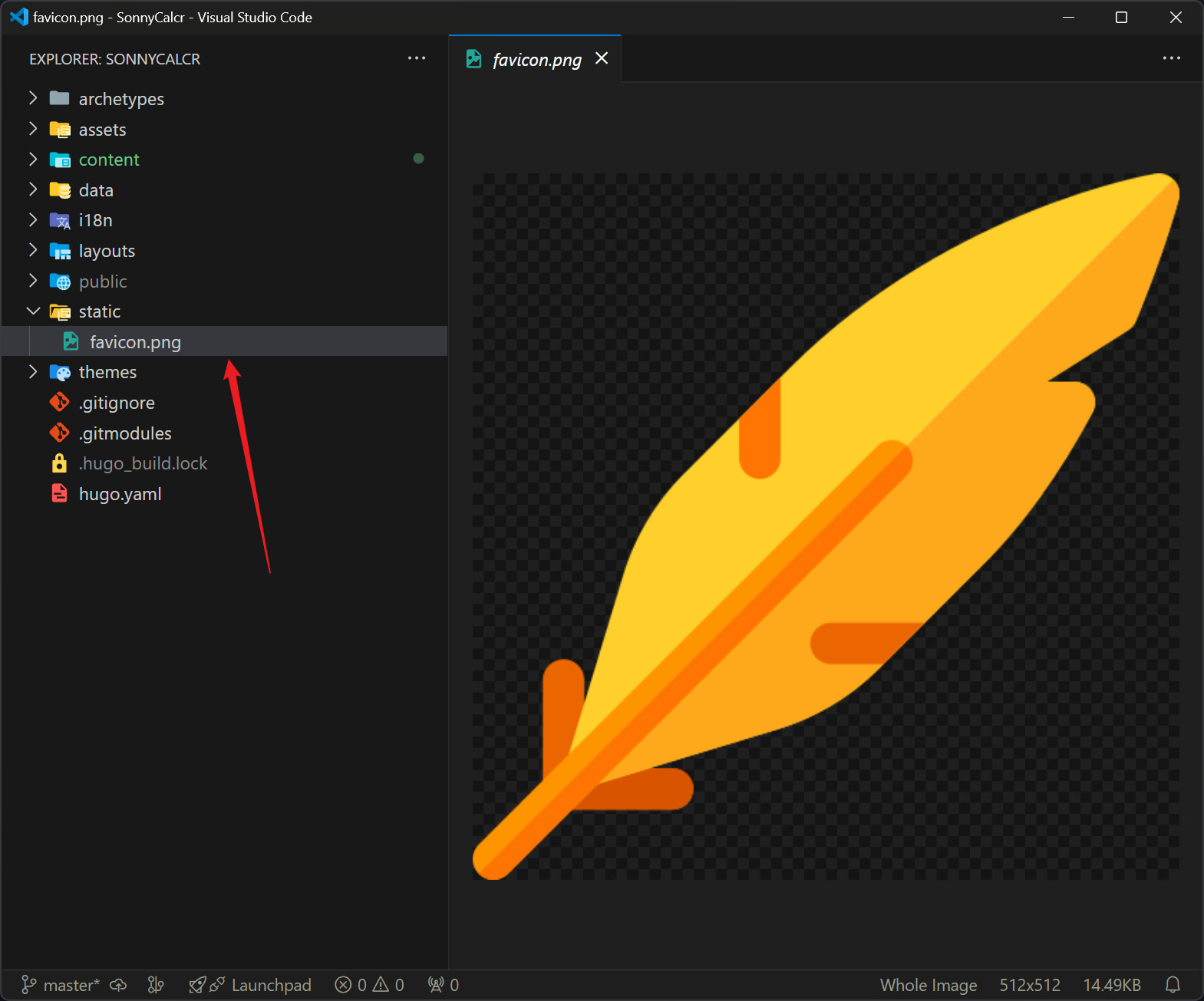
这个就直接看我的代码仓库就可以了,修改的基本都是 css,代码都在 assets 目录下,
部署到 Github Pages
这里其实有两种方式,一种是直接建立一个以 username.github.io 为名的 Github 仓库,然后,进行部署,另一种是在此基础上新建一个普通的项目,然后可以挂到 username.github.io 域名的后面。
我们这里就选用简单的第一种比较直接的方式。
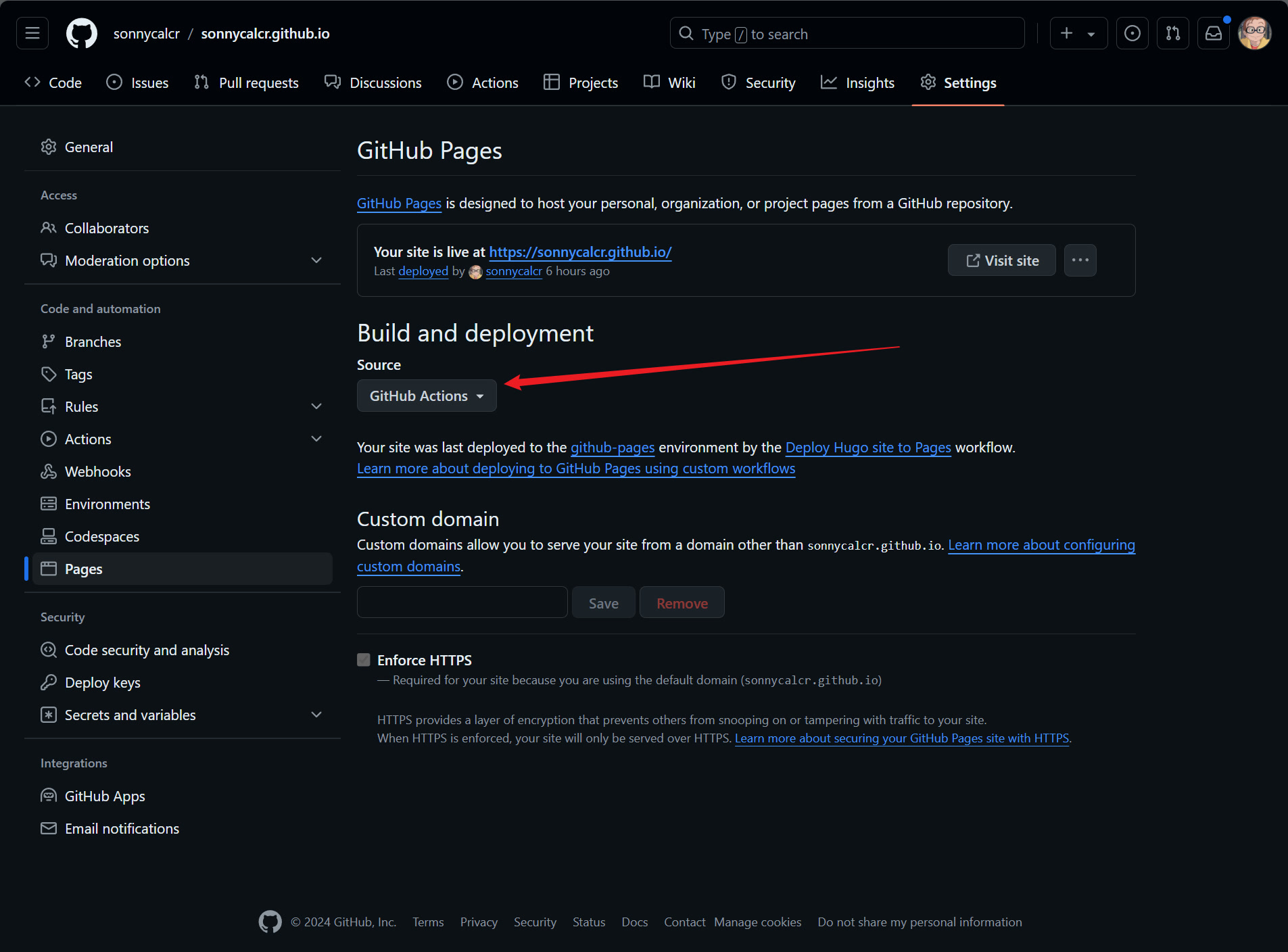
新建一个仓库,没有什么好说的,然后把我们当前的这个仓库和远程仓库关联起来,然后推送过去。然后按照 Hugo 的文档指导来操作即可。
对于官方给出的 .github/workflows/hugo.yaml, 把其中的分支名改一下即可,或者同时把其中的 Hugo 的版本信息改成和本地的一致也可以。之后,每次推送就可以看到 Github 在部署了。
一些常用的 Hugo 命令
其实可能只有两个需要我们去记忆或者说熟悉,
hugo new content content/posts/xxxxx.mdhugo server
一些不足
PaperMod 的搜索十分简陋。但是,问题倒也不大。从好的方面来讲,该分享的内容是不影响分享的,而且,正式因为搜索不太好用,所以对个人的隐私可能反而会友好一点。
验证与自查
hugo server本地预览:首页、归档、分类、标签、搜索页均正常,搜索能搜到文章内容- 文章页底部出现 giscus 评论框,且明暗主题切换时评论主题跟随变化
- 数学公式正确渲染;含三对以上花括号的公式用
<div>包裹后解析正常 - 推送到 GitHub 后 Actions 构建成功,访问
https://<username>.github.io/与本地效果一致,favicon 正常显示